


Present in the Boardroom
Last updated: Apr 27, 2026
633
views

To present in the board Room
To connect to the projector using your laptop,
- Plug the HDMI cable on the floor by the screen into your laptop and turn on the Epson projector using the white remote on the wheeled podium.
- On your computer, go to the systray in the lower right of your screen and click on the speaker button.
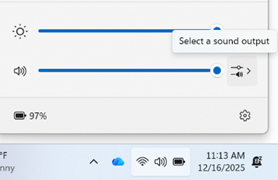
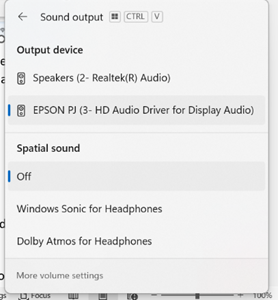
- Then click on the button on the right (circled) to select a sound output. By default, it should recognize the projector, if not click on the radio button for EPSON PJ (3-D Audio Driver for Display Audio) and make sure the volume is turned all the way up.
- Join your Teams or Zoom meeting. Verify that teams is using the EPSON PJ speaker, if not, click on the speaker icon when joining your meeting and select it.
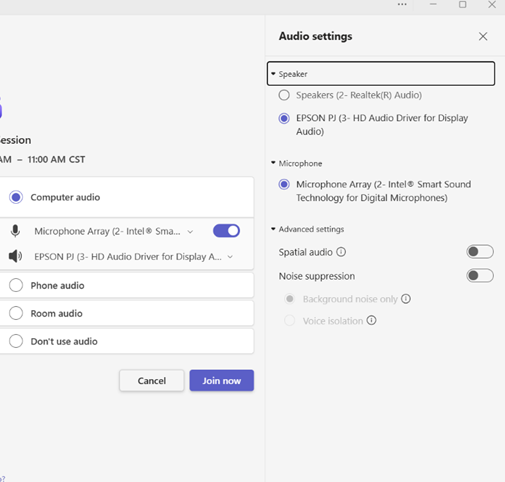
- Now your video and audio will be going through the Epson projector.
If using the Smartboards,
- Wake up the Smartboards by pressing the Enter key on both keyboards.
- Login to the Smartboards as NIFB Smartboard1 and NIFB Smartboard 2 using alphanumeric PINs.
- If joining a Teams or Zoom Meeting, Make sure that both nifbsmartboard1 and nifbsmartboard2 have been invited to the meeting or sent a join link if not on Teams.
- Join Smartboard1 (Smart Board on the right with Audio On sticky note) with the Microphone enabled, if requested enable the camera so people can see inside of the boardroom.
- Join Smartboard2 with NO MICROPHONE, if requested enable camera.
- Joining smartboard 2 with microphone causes audio issues for the entire room
- Please log off (do not shutdown) the Smartboards when finished.
If you need assistance, please contact the NIFB Help Desk at [email protected] or call (630) 296-9388, or x0222.

